

Download Data
## Uncomment these if working locally, else let the following code cell run.

# import urllib.request
# url = 'https://cf-courses-data.s3.us.cloud-object-storage.appdomain.cloud/IBMDeveloperSkillsNetwork-PY0101EN-SkillsNetwork/labs/Module%204/data/example1.txt'
# filename = 'Example1.txt'
# urllib.request.urlretrieve(url, filename)

## Download Example file
# !wget -O /resources/data/Example1.txt https://cf-courses-data.s3.us.cloud-object-storage.appdomain.cloud/IBMDeveloperSkillsNetwork-PY0101EN-SkillsNetwork/labs/Module%204/data/example1.txt
from pyodide.http import pyfetch
import pandas as pd

filename = "https://cf-courses-data.s3.us.cloud-object-storage.appdomain.cloud/IBMDeveloperSkillsNetwork-PY0101EN-SkillsNetwork/labs/Module%204/data/example1.txt"

async def download(url, filename):
    response = await pyfetch(url)
    if response.status == 200:
        with open(filename, "wb") as f:
            f.write(await response.bytes())


await download(filename, "Example1.txt")
Reading Text Files
One way to read or write a file in Python is to use the built-in open function. The open function provides a File object that contains the methods and attributes you need in order to read, save, and manipulate the file. In this notebook, we will only cover .txt files. The first parameter you need is the file path and the file name. An example is shown as follow:
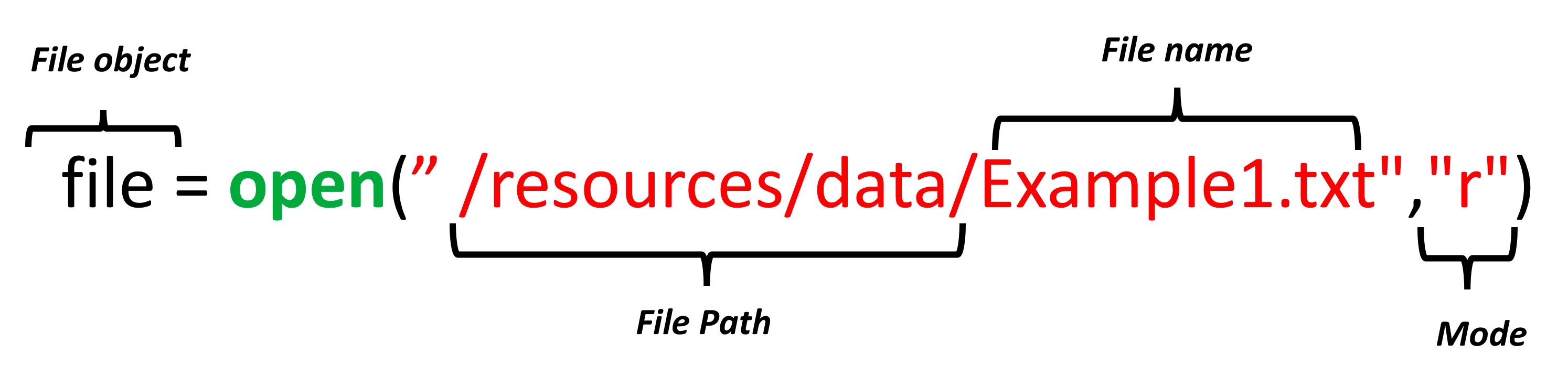
The mode argument is optional and the default value is r. In this notebook we only cover two modes:
- **r**: Read mode for reading files
- **w**: Write mode for writing files
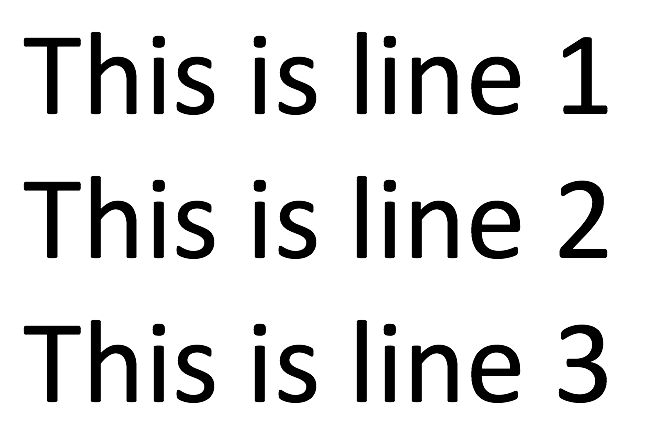
For the next example, we will use the text file Example1.txt. The file is shown as follows:
We read the file:
# Read the Example1.txt
example1 = "Example1.txt"
file1 = open(example1, "r")
We can view the attributes of the file.
The name of the file:
# Print the path of file

file1.name
'Example1.txt'
The mode the file object is in:
# Print the mode of file, either 'r' or 'w'

file1.mode
'r'
We can read the file and assign it to a variable :
# Read the file

FileContent = file1.read()
FileContent
'This is line 1 \nThis is line 2\nThis is line 3'
The /n means that there is a new line.
We can print the file:
# Print the file with '\n' as a new line

print(FileContent)
This is line 1
This is line 2
This is line 3
The file is of type string:
# Type of file content

type(FileContent)
str
It is very important that the file is closed in the end. This frees up resources and ensures consistency across different python versions.
# Close file after finish

file1.close()
A Better Way to Open a File
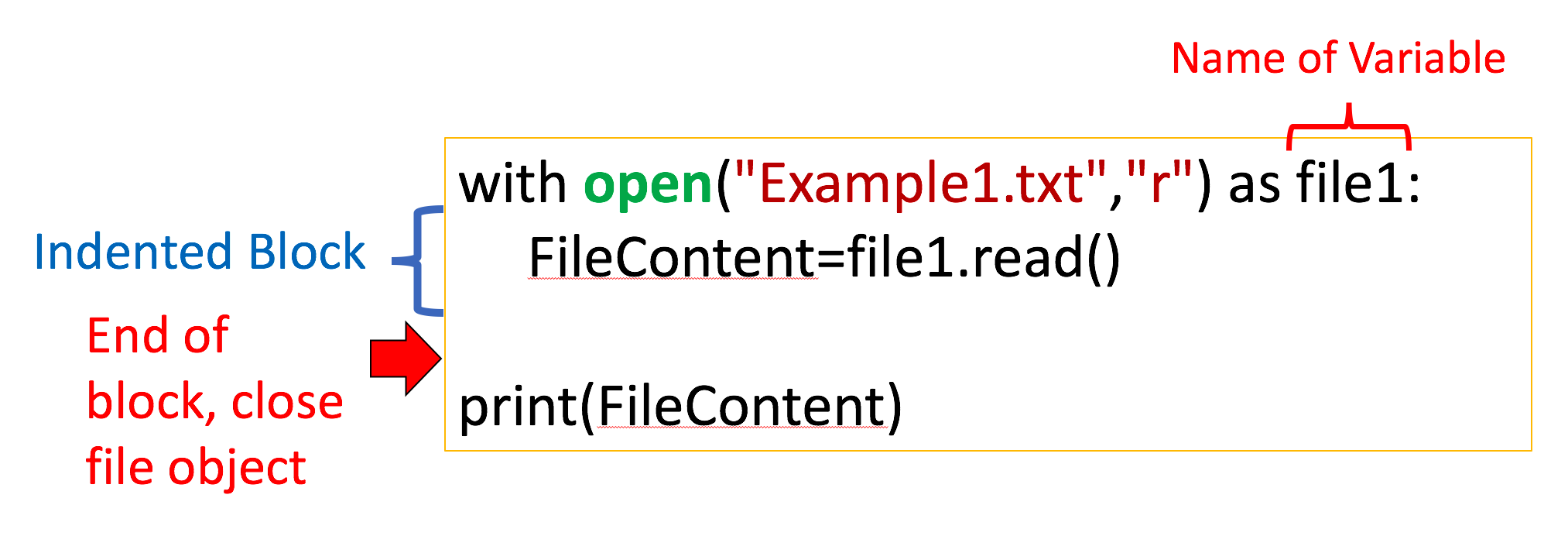
Using the with statement is better practice, it automatically closes the file even if the code encounters an exception. The code will run everything in the indent block then close the file object.
# Open file using with

with open(example1, "r") as file1:
    FileContent = file1.read()
    print(FileContent)
This is line 1
This is line 2
This is line 3
The file object is closed, you can verify it by running the following cell:
# Verify if the file is closed

file1.closed
True
We can see the info in the file:
# See the content of file

print(FileContent)
This is line 1
This is line 2
This is line 3
The syntax is a little confusing as the file object is after the as statement. We also don’t explicitly close the file. Therefore we summarize the steps in a figure:
We don’t have to read the entire file, for example, we can read the first 4 characters by entering three as a parameter to the method .read():
# Read first four characters

with open(example1, "r") as file1:
    print(file1.read(4))
This
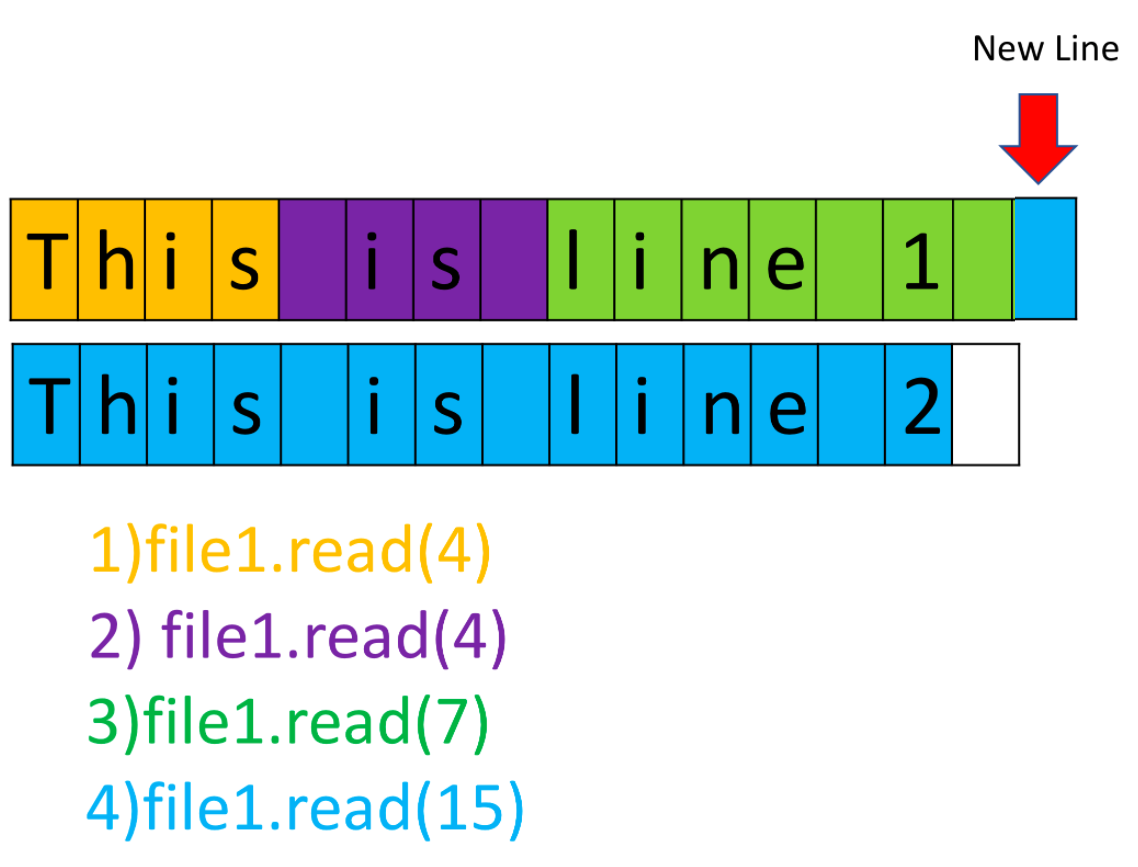
Once the method .read(4) is called the first 4 characters are called. If we call the method again, the next 4 characters are called. The output for the following cell will demonstrate the process for different inputs to the method read():
# Read certain amount of characters

with open(example1, "r") as file1:
    print(file1.read(4))
    print(file1.read(4))
    print(file1.read(7))
    print(file1.read(15))
This
 is
line 1

This is line 2
The process is illustrated in the below figure, and each color represents the part of the file read after the method read() is called:
Here is an example using the same file, but instead we read 16, 5, and then 9 characters at a time:
# Read certain amount of characters

with open(example1, "r") as file1:
    print(file1.read(16))
    print(file1.read(5))
    print(file1.read(9))
This is line 1

This
is line 2
We can also read one line of the file at a time using the method readline():
# Read one line

with open(example1, "r") as file1:
    print("first line: " + file1.readline())
first line: This is line 1
We can also pass an argument to readline() to specify the number of charecters we want to read. However, unlike read(), readline() can only read one line at most.
with open(example1, "r") as file1:
    print(file1.readline(20)) # does not read past the end of line
    print(file1.read(20)) # Returns the next 20 chars
This is line 1

This is line 2
This
We can use a loop to iterate through each line:
# Iterate through the lines

with open(example1,"r") as file1:
        i = 0;
        for line in file1:
            print("Iteration", str(i), ": ", line)
            i = i + 1
Iteration 0 :  This is line 1

Iteration 1 :  This is line 2

Iteration 2 :  This is line 3
We can use the method readlines() to save the text file to a list:
# Read all lines and save as a list

with open(example1, "r") as file1:
    FileasList = file1.readlines()
FileasList
['This is line 1 \n', 'This is line 2\n', 'This is line 3']
Each element of the list corresponds to a line of text:
# Print the first line

FileasList[0]
'This is line 1 \n'
Print the second line
FileasList[1]
# Print the third line

FileasList[2]
The last exercise!
Congratulations, you have completed your first lesson and hands-on lab in Python.
Author
Other contributors
Change Log
| Date (YYYY-MM-DD) | Version | Changed By | Change Description |
|---|---|---|---|
| 2022-01-10 | 2.1 | Malika | Removed the readme for GitShare |
| 2020-09-30 | 1.3 | Malika | Deleted exericse "Weather Data" |
| 2020-09-30 | 1.2 | Malika Singla | Weather Data dataset link added |
| 2020-09-30 | 1.1 | Arjun Swani | Added exericse "Weather Data" |
| 2020-09-30 | 1.0 | Arjun Swani | Added blurbs about closing files and read() vs readline() |
| 2020-08-26 | 0.2 | Lavanya | Moved lab to course repo in GitLab |